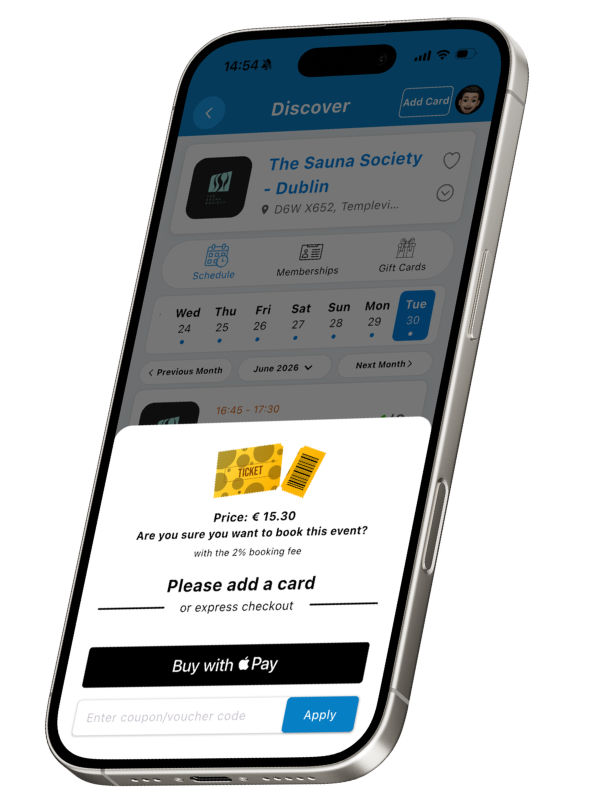
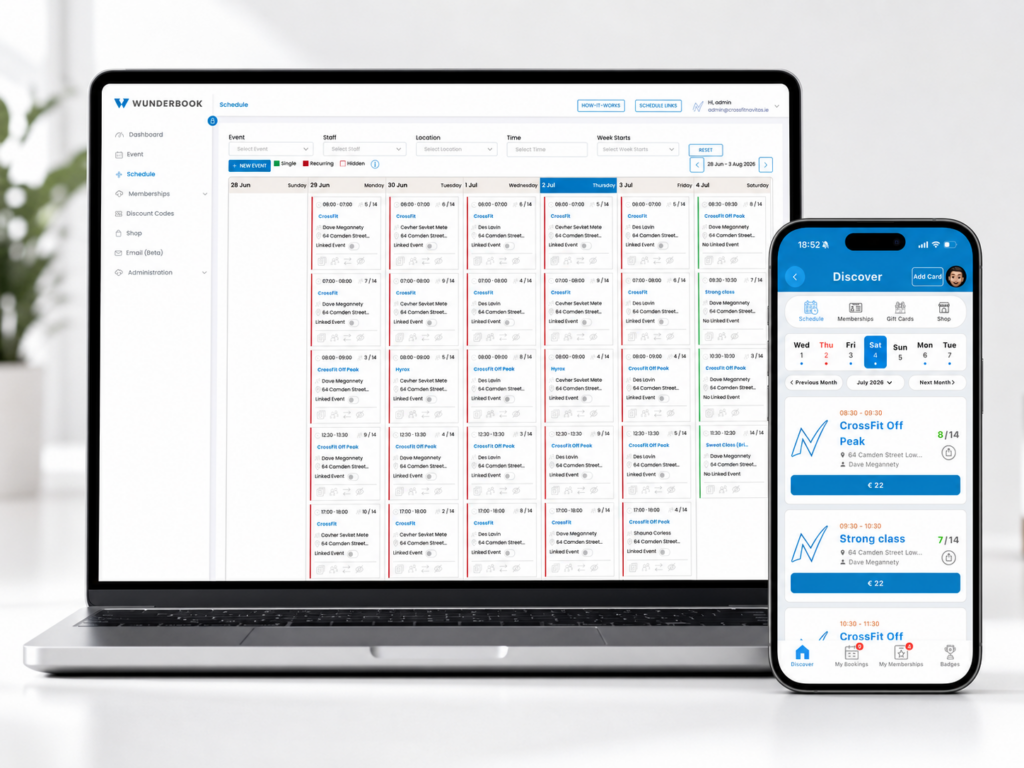
User book here

👆Users download app to book👆

The best FREE Booking System.

Built for Independents.

Simple bookings. Fast checkouts. No monthly fees

Buinsesses
0 +
Users
0 +
Bookings
0 +

REAL BUSINESSES. REAL BOOKINGS.

See Wunderbook in action.

Explore live schedules from real businesses using Wunderbook. Book into a class, session or experience and see how simple it is. 

⚡ Checkout in under 30sec         💳 Apple & G-pay         📱Mobile first approach

Eddie & Amy have been with us for over a year and are currently opening their second premises.

The Navitas team have been with us from the start and have two locations and were sick of the rising cost of their system.

Jill & the team run a very successful studio in Mullingar, as well as holding down family life. Key is keep it simple.

WE’RE BETTER TOGETHER

Built for Independents

Powered by community

Wunderbook is more than booking software. We’re a community of independent business owners helping each other grow. 

How it works

Register

Create your Free account

Connect Stripe

Connect to receive payments securely

Create schedule

Set you sessions, availability and limits

Share your link

Start accepting bookings

Everything you need. FREE

Ready to grow?

Everything you need.
Minus the cost.

We only grow when you do.

That’s why Wunderbook is built to support your business long after you sign up.

Scroll to Top

Dashboard Overview and User Management SOP

Objective

This SOP outlines the steps to navigate and utilize the dashboard for managing users and events effectively.

Key Steps

1. Understanding User Metrics 0:00

generated-image-at-00:00:00

  • Total Users: Represents everyone who has ever booked an event.

  • Current Members: Active memberships at present.

  • New Users: Users who booked an event in the current month.

  • Event Revenue: Total revenue from events booked.

  • Membership Revenue: Revenue from memberships purchased.

  • Total Bookings: List of all bookings for the month.

2. Identifying At-Risk Users 0:39

generated-image-at-00:00:39

  • At-Risk Users: Users who have not booked in the last 2 to 8 weeks.

  • Completed Memberships: Users who completed their membership in the last 30 days.

3. Accessing User Details 1:05

generated-image-at-00:01:05

  • Click on Total Users to view detailed information.

  • Check for memberships and bookings associated with each user.

4. Reviewing Revenue and Bookings 1:36

  • Review Event Revenue and Membership Revenue to track financial performance.

  • Note any bookings that have been cancelled or refunded.

5. Exporting Data 2:08

  • Use the export function to download data to Excel.

  • Export at-risk users or total users for further contact.

Cautionary Notes

  • Ensure to verify the accuracy of user data before taking any actions based on it.

  • Be cautious when contacting at-risk users; personalize your communication to improve engagement.

Tips for Efficiency

  • Regularly check the dashboard to stay updated on user metrics and revenue.

  • Set reminders to follow up with at-risk users to enhance retention.

  • Utilize Excel exports for better data analysis and tracking.

Link to Loom

https://loom.com/share/dbe6f3898f164cfcad74c2f4f73540c0

Memebrship pricing guide

Learn from others mistakes